



Whether you want to make text stand out, add some structure, or create a unique visual, we’ll show you a few ways to insert a text box in Google Docs.
Maybe you’re trying to make text more prominent in your document or want a uniform appearance for certain portions of content. Unlike Microsoft Word, Google Docs doesn’t currently provide a built-in text box feature, but that doesn’t mean it can’t be done.
Contents We’ll show you a few ways to insert a text box in Google Docs. Each has its pros and cons, which we’ll also explain, so that you can use the best option for your document. Recommended Videos Difficulty Moderate Duration 10 minutes What You Need How to use the Drawing tool to create a text boxOne of the most popular ways to insert a text box in Google Docs is by using the Drawing feature. With it, you create the text box, customize its appearance, and add it to your document to use like an image. Step 1: Place your cursor where you want the text box, select Insert >Drawing in the menu, and pick New. Step 2: When the Drawing window opens, choose Text box in the toolbar. Note: You can also use a Shape like a callout or oval and enter the text inside of it. Step 3: Drag your cursor to draw the box in the size you want. Keep in mind that you can resize it later if needed. Step 4: Add your text inside the box and you then have the option of using the tools at the top to customize it. As examples, you can add a border and choose its color, change the font style and size, or align and space the text. Step 5: When you finish, select Save and Close at the top. You’ll then see your text box appear in your Google Doc. Step 6: If you select the inserted text box, you’ll see a floating toolbar display beneath it. You can use this to wrap other text around it or keep it inline, as well as rotate or resize the box. Step 7: To make changes to the text, select Edit in the floating toolbar. This reopens the Drawing tool for you to make and save the adjustments. The advantage to this method is that you’re inserting an actual text box that you can customize and move freely. The disadvantage is that you must open the Drawing tool to make edits to the text and the box. How to add a single-cell table as a text boxAnother way to add a text box in Google Docs is to insert a single-cell table. You can then customize both the table and the text within it.Step 2: In the pop-out menu, choose a single cell. You should see “1 x 1” display at the bottom of the menu. Step 3: When the table appears, enter the text in the cell and optionally change the font style, size, or color with the top toolbar. Step 4: You can resize the table width by dragging in or out from the edge and make additional changes to the table’s appearance by right-clicking it and choosing Table properties. Step 5: When the Table Properties sidebar opens, use the various sections to select a style and alignment, set an exact size, or add a table border and background color.The advantage to this method is that your text is self-contained in a box-like table that you can easily edit. The disadvantage is that tables can be difficult to manipulate and position with surrounding content. How to mimic the appearance of a text boxOne more way to include a text box in Google Docs is a workaround, but still quite useful in certain circumstances. For instance, you might not necessarily need a text box, but rather, text inside of a box for a visual effect. This involves simply typing your text and then adding borders around it.Step 2: Open Format in the menu and pick Paragraph styles >Borders and shading.Step 4: Optionally, you can adjust the additional settings for the borders including the width, style, and color. You can also include a background color and add padding around the text if you like. Select Apply when you finish.Step 6: If you add more text, you’ll see the bottom border expand to accommodate it, just like a regular text box. The advantage to this method is that you can quickly edit the text without opening another tool. The disadvantage is that you cannot freely drag, move, or resize the box around the text.If you use the Drawing tool to create a text box and insert it into Google Docs, you have the option to move and place the box over an image. After you add the text box, select In front of text in the floating toolbar. Then drag the text box on top of the image.You can use a shape instead of a box for your text with the Drawing tool in Google Docs. Go to Insert >Drawing >New and instead of using the Text box tool, open the Shape menu. Pick the shape, drag to draw it, and then select the shape to enter your text inside of it.To insert a text box in Microsoft Word, go to the Insert tab and open the Text Box menu in the ribbon. Choose a Built-in text box or pick Draw Text Box to draw the box yourself. Then simply enter your text inside the box.
United States Latest News, United States Headlines
Similar News:You can also read news stories similar to this one that we have collected from other news sources.
 Google announces early Pixel hardware 'Made by Google' event for August 13Johanna 'Jojo the Techie' is a skilled mobile technology expert with over 15 years of hands-on experience, specializing in the Google ecosystem and Pixel devices. Known for her user-friendly approach, she leverages her vast tech support background to provide accessible and insightful coverage on latest technology trends.
Read more »
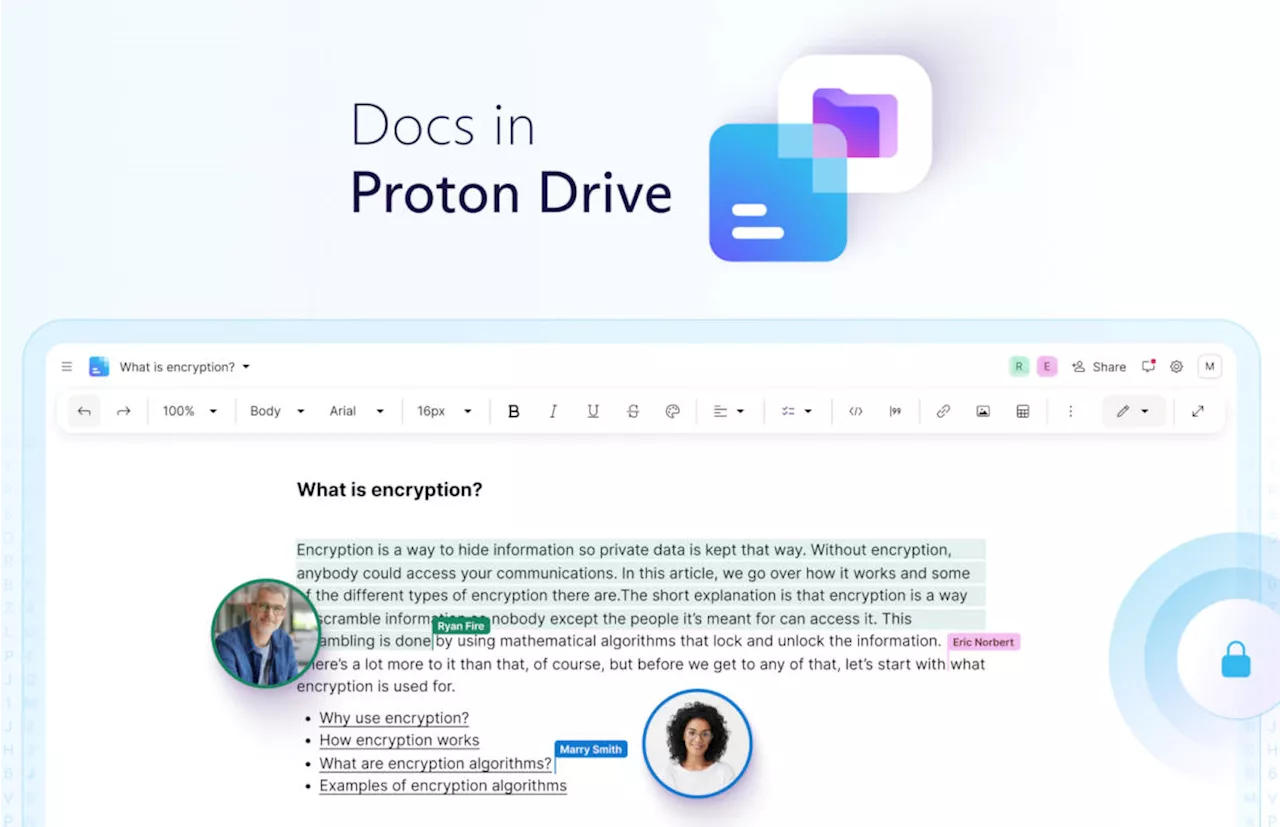 Proton launches its own version of Google DocsMariella Moon has been a night editor for Engadget since 2013, covering everything from consumer technology and video games to strange little robots that could operate on the human body from the inside one day. She has a special affinity for space, its technologies and its mysteries, though, and has interviewed astronauts for Engadget.
Read more »
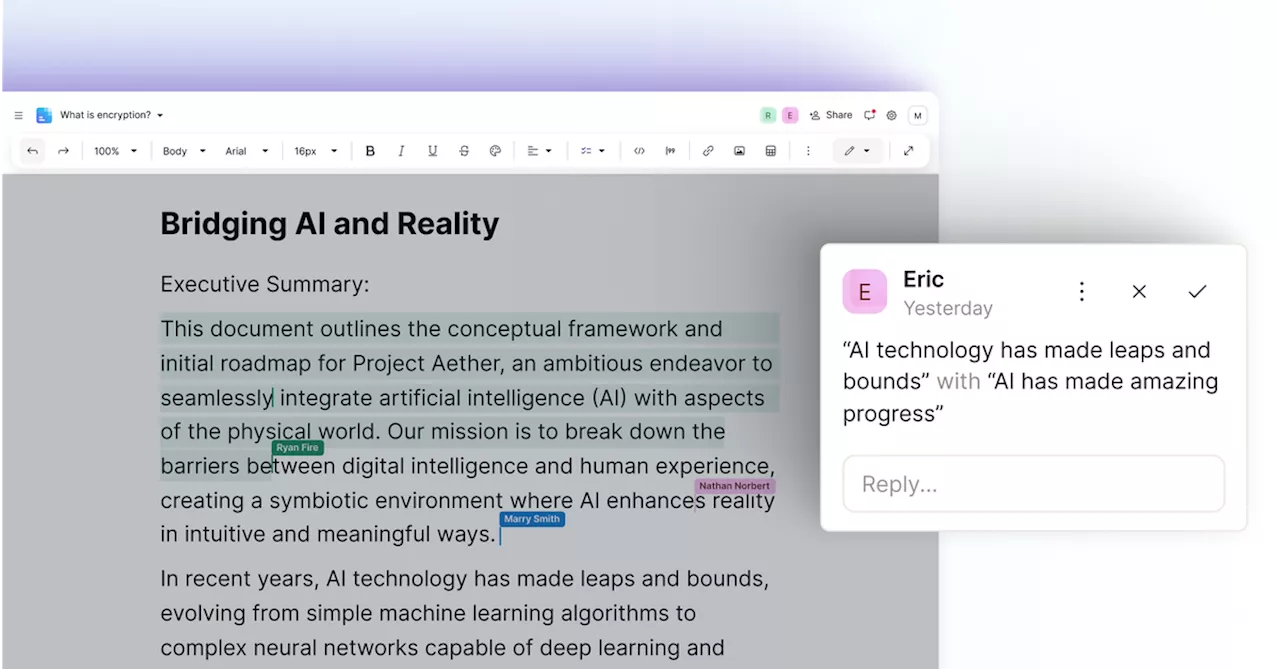 Proton Docs is a privacy-focused answer to Google Docs and Microsoft WordDocs adds to Proton’s offering of work tools, which also includes Drive, Calendar, Mail, and a VPN. Proton has become a successful alternative to both Google and Office.
Read more »
 Proton Is Launching Encrypted Documents to Take On Google DocsProton is adding an end-to-end encrypted documents editor to its privacy tools, boosting its competition with Google’s suite of productivity apps.
Read more »
 A surprising new competitor to Google Docs just made its debutProtons version of Google Docs gives users something Google doesn't: privacy. The files and even mouse movements are encrypted.
Read more »
 Proton Launches Google Docs Rival with Enhanced Privacy FeaturesSource of breaking news and analysis, insightful commentary and original reporting, curated and written specifically for the new generation of independent and conservative thinkers.
Read more »