
A PS5 controller is an innovative piece of tech. In this guide, we'll walk you through how to sync a PS5 controller to your PS5 system through a few steps.
Whether you're going with the default DualSense controller, the Dualsense Edge -- which is one of our favorite PS5 controllers -- or a third-party controller, you'll need to connect your PS5 controller to play the best PS5 games.
It's not a difficult process, but if you aren't aware of the ins and outs of it, it is reasonable to have trouble. Contents This guide specifically covers connecting your PS5 controller to your PS5, a process known as 'syncing'. Previously, we've covered connecting your PS5 controller to PC and even how to update PS5 controllers from PC, if you're strictly a computer gamer who uses a PS5 controller for that purpose. Naturally, we've also gone over syncing a PS4 controller, just in case you're lost in the wrong gaming generation. Recommended Videos Difficulty Easy Duration 5 minutes How to connect a PS5 controller to a PS5Out of the box, the PS5 comes with one DualSense controller and a USB-C to USB-A cable for charging. You can use these steps with those or any compatible alternative. Step 1: Turn on the system and plug the standard USB end of your charge cable into the front or back of the console. Step 2: Plug the other end of the cable -- the smaller USB-C end -- into the PS5 controller. If you are using a DualSense controller, you'll find what you're looking for at the top. Related Step 3: Press the PS button on the controller, located just below the speaker on the face of the DualSense. Step 4: The controller should blink for a few moments and then light up on the front, indicating it has been powered on. Eventually, the lights on the controller will turn blue, meaning it has been synced to the system correctly. You're now free to unplug the cable and use your PS5 controller wirelessly. Just note that you will need to utilize that cable to charge your DualSense controller periodically. Also keep in mind that you may need to update the firmware of your PS5 controller, and the system will prompt you to do so if need be. How to connect additional controllers to your PS5The PS5 supports up to four controllers at once, so you'll need to know how to sync additional controllers to your machine if you want to play local multiplayer games. You can utilize the method described above -- by using a USB-C cable -- but there's an easier way. Instead, once you've got one controller paired with your PS5, you can sync other controllers wirelessly. To do so, follow these steps: Step 1: Make sure your additional controllers are turned off. If the light on the controller is on, it means the device is turned on, so hold down the PS button for a few seconds to turn it off. Step 2: Using the controller that's already paired, go to Settings *>*Accessories *>*General *>*Bluetooth accessories. Step 3: Now, press and hold the PS button and the *Create *button simultaneously on the additional controller. Step 4: Eventually, the device will appear as an Accessory found, so once it does, select it with the original controller to complete the syncing process. Test out the second controller to ensure it's paired properly, and you'll be all set. Repeat this process with your additional PS5 controllers .
DT-EM-B2 Dualsense EM2V1 Playstation Playstation 5 PS5 Sony
United States Latest News, United States Headlines
Similar News:You can also read news stories similar to this one that we have collected from other news sources.
 I won't buy the PS5 Pro if it can't enhance these PS5 gamesThese games all need PS5 Pro Enhanced patches.
Read more »
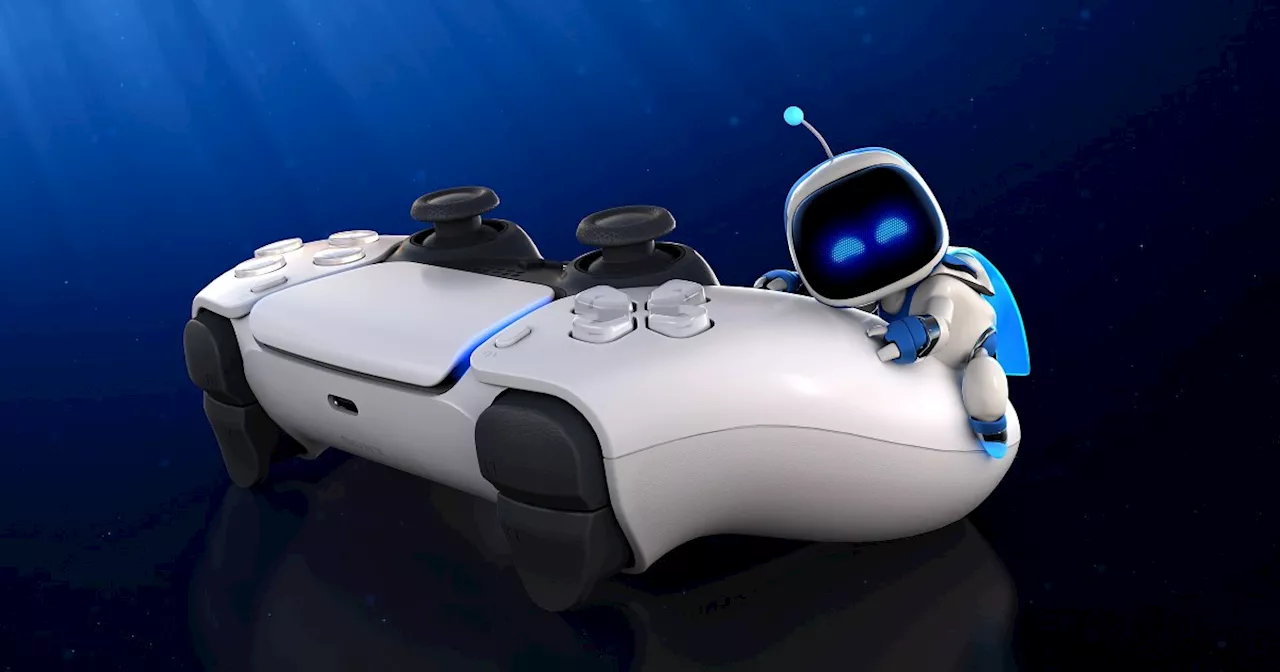 PS5 controller drift: how to fix PS5 controller joystick driftIf you're noticing issues with your DualSense joysticks, there are a few methods you can try to repair it yourself. Here's how to fix joystick drift on PS5.
Read more »
 Can You Really See The Difference Between PS5 And PS5 Pro Graphics?A deep dive into the graphical improvements of the PS5 Pro, analyzing screenshots and comparing them to the original PS5. The article encourages readers to download high-resolution images and judge for themselves if the difference is worth the price premium.
Read more »
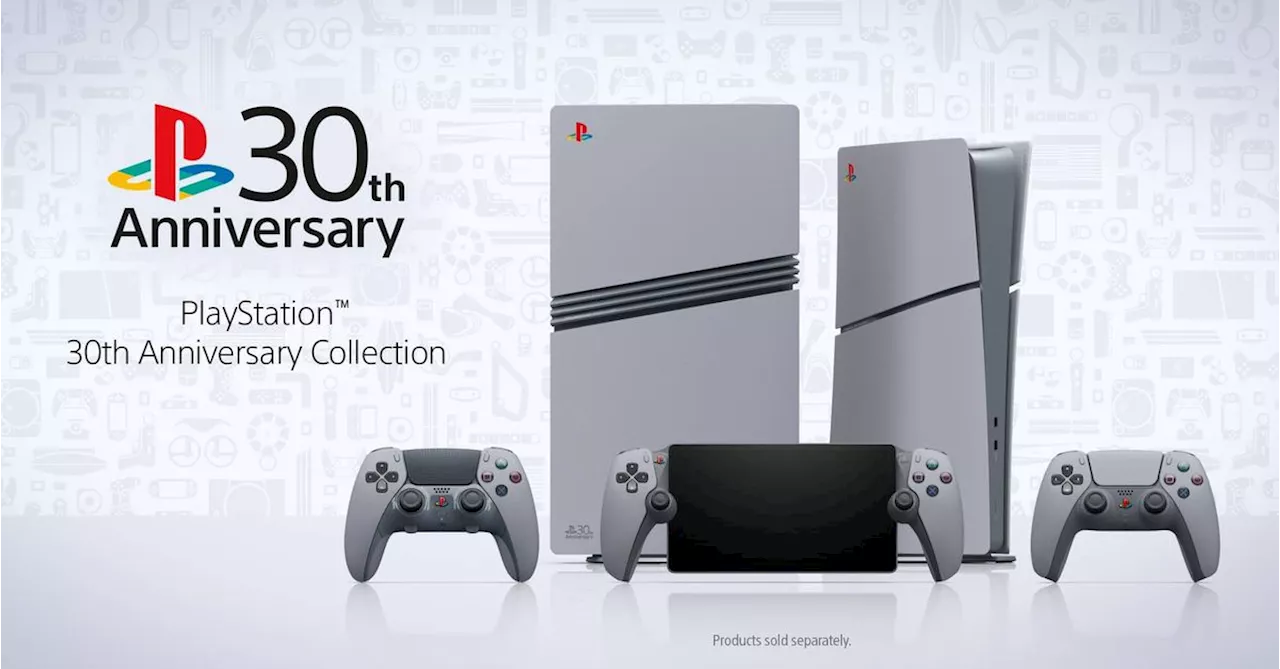 PlayStation’s 30th anniversary PS5 and PS5 Pro are delightfully retroSony has announced a special 30th anniversary collection of PS5 consoles and accessories that is unfortunately sick as hell.
Read more »
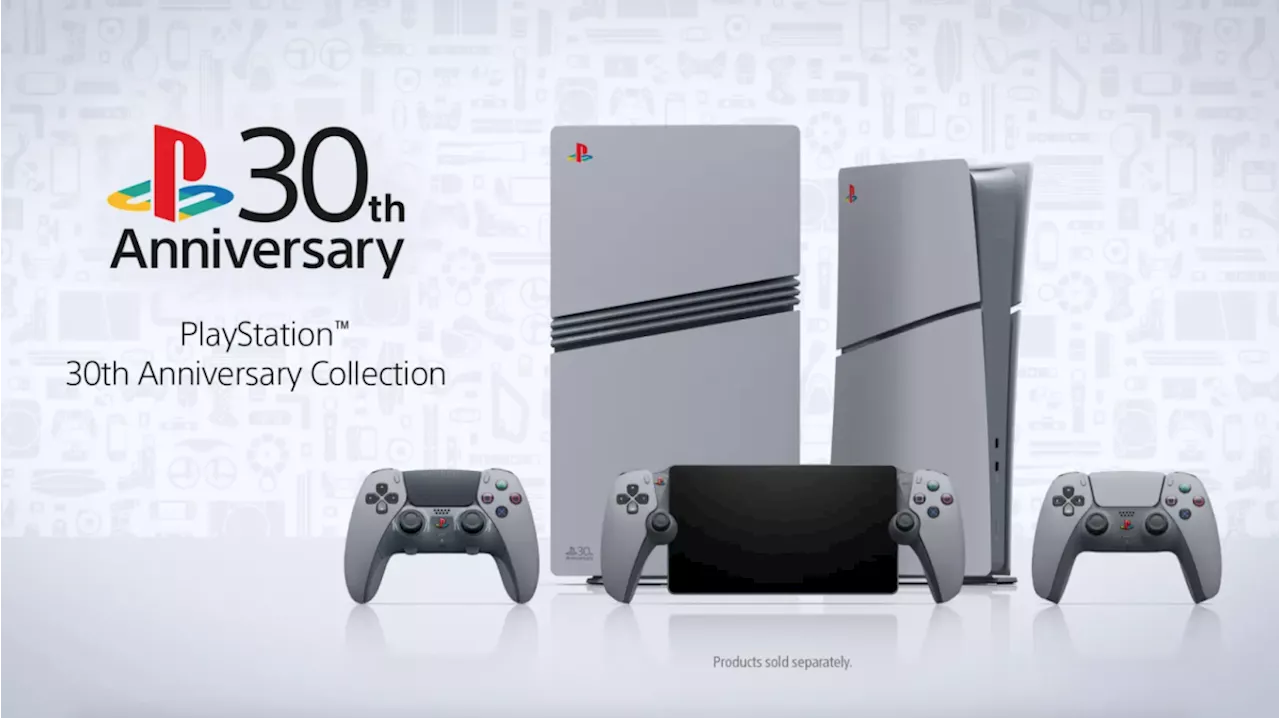 PlayStation’s 30th anniversary PS5 and PS5 Pro consoles are so very prettyLawrence is a contributing reporter at Engadget, specializing in our AI overlords, musical doodads and, of course, garden variety gaming and tech. To that end, Lawrence once lost badly in multiplayer Mario to Nintendo’s own Shigeru Miyamoto, who laughed gleefully as he threw him down a pit.
Read more »
Sony celebrates PlayStation’s 30th anniversary with PS1-style PS5 and PS5 Pro bundlesSony unveiled PlayStation 30th anniversary PS5 and PS5 Pro editions, a special PS Portal, and even new DualSense controller styles
Read more »